
My account
Welcome to the “My Account” section.
Here you’ll find all the information about your registration and account management. Learn how to update your data or manage your toll products.
All questions - My account
With ASFINAG customer account
With an ASFINAG account, you have direct access to your digital toll products at any time and benefit from several practical features:
- Manage personal data
You can easily view and update your personal data as needed.
- Manage digital toll products and subscriptions
Subscribe or adjust subscriptions, repurchase products, and activate a reminder function before expiration.
- Use digital section toll FLEX
Register for the Digital Section Toll FLEX service for free, use all six section toll routes, and allow automatic debiting from the stored payment method.
- Overview of all products and services
View all purchased products, manage payment methods, and download or reprint order confirmations and invoices at any time.
- Assign products
Already purchased digital toll products can be added to your account using the product ID.


Open the ASFINAG-Mautshop and click “Log in”.
Click “Register now”.
Enter your email address and agree to the processing of your personal data.
Click “Continue with email address”.
A one-time password will be sent to your email address. Open the email with the one-time code. The code is valid for 10 minutes.
Enter the code and click “Confirm”.
Complete the account setup and click “Save and continue”.
You have successfully set up the account. You will now be automatically redirected to the account overview.
With your ASFINAG account, you can manage your products in the Mautshop and personalize the services on asfinag.at and in the ASFINAG app. Manage your personal data here to tailor your ASFINAG account to your needs.
To better protect your ASFINAG account, a new sign‑in method using a one‑time password has been introduced.
The advantage: you no longer need to remember a password; you log in to your ASFINAG account with a one‑time password.
How does it work?
Open the ASFINAG-Mautshop and click “Log in”.
Enter your email address and click “Continue”.
A one‑time password will be sent to your email address. Open the email with the one‑time code. The code is valid for 10 minutes.
Enter the code and click “Confirm”.
After successful confirmation, you will be automatically signed in to your ASFINAG account and redirected to the account overview.
You can now manage your products in the Mautshop and personalize the services on asfinag.at and in the ASFINAG app.
No. You can continue signing in with a one‑time password or optionally set a personal password. You can do this in your account settings under “Login & Security”.
I forgot my password. What do I need to do?
If you forget your password, the next steps depend on which sign‑in method you use for your ASFINAG account.
You use a personal password
If you set up sign‑in with a personal password, you can reset it yourself at any time.
How it works:
Open the ASFINAG account sign‑in page.
Click “Forgot password”.
Enter your email address.
You will receive a verification code by email.
Enter the code and set a new password.
You can then sign in with your new password.
You do not use a personal password
If you have not set up a personal password, there is nothing to reset.
In this case, sign‑in is done via a one‑time password that is automatically sent to your registered email address each time you log in. A personal password is not required.
Simply enter your email address and use the one‑time password sent to you to sign in.
If you requested a one‑time password to sign in to your ASFINAG account but didn’t receive it, you can take the following steps:
Wait a moment
The one‑time password is usually sent to your registered email address within 10 seconds.
Check your Spam or Junk email folder
Sometimes the email is automatically marked as spam. Therefore, also check your Spam or Junk folder.
Verify your email address
Make sure you entered your email address correctly.
Request a new one‑time password
If the email does not arrive after a short wait, restart the sign‑in process and request a new one‑time password.
If you no longer have access to the email address stored in your ASFINAG account, please contact the ASFINAG Service Center 1.
For data protection reasons, before changing the email address we must verify that you are authorized to manage the account.
Identification can be completed in the following ways:
By telephone
With the Product ID of a product from your ASFINAG account
You can find the Product ID on your order confirmation
In writing
With the Product ID of a product from your ASFINAG account (found on the order confirmation)
With the invoice number of a product purchased in the ASFINAG account (found on the invoice from the ASFINAG Mautshop)
With the registration certificate of a license plate for which a digital toll product has already been purchased via the respective ASFINAG account
Once your authorization has been successfully verified, we will be happy to assist you in updating the email address on file.
The one‑time password is valid for 10 minutes.
Please request only one one‑time password within 10 minutes.
If you request multiple one‑time passwords within these 10 minutes for the same ASFINAG account, the first requested one‑time password remains valid.
Therefore, please use the originally received one‑time password to complete the sign‑in or the desired change.
After the 10 minutes have elapsed, you can request a new one‑time password.
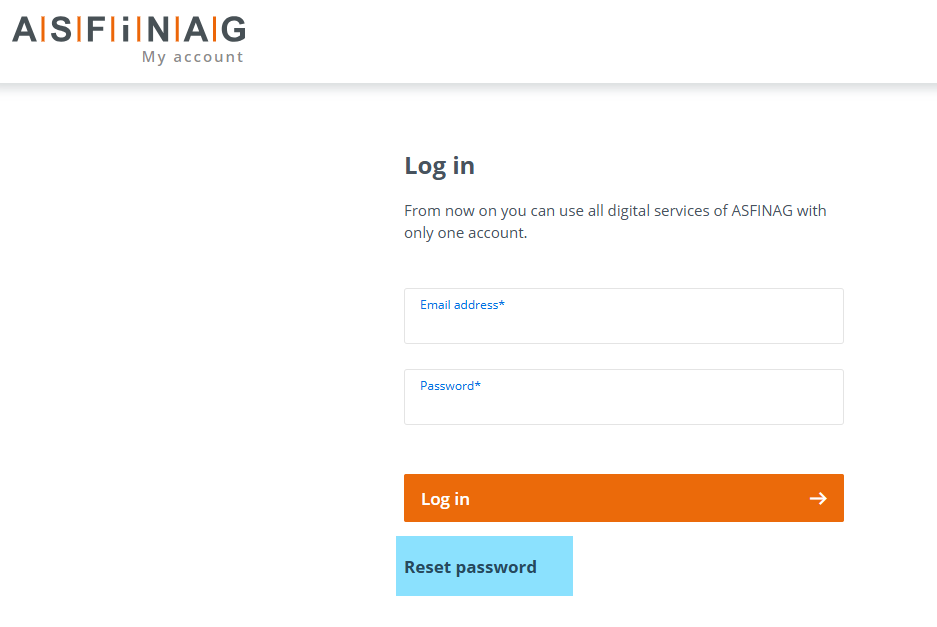
Click on "Reset password" in the login mask and enter the email address associated with your ASFINAG account.
You will then receive an email with a link to reset your password.
Click on the link and set a new password on the opened page.
If you did not purchase the digital toll product directly via your ASFINAG account, but for example as an unregistered customer or at a local distributor, you can assign many products to your account afterward.
Products you can assign
- Digital vignettes and digital section toll products, purchased:
-
at a local distributor,
-
at a toll station,
-
at an ASFINAG sales machine, or
-
in the ASFINAG Mautshop without logging in.
- Digital section toll multi-trip cards, purchased at a toll station.
How to assign a product to your ASFINAG account
-
Open your ASFINAG account ("Create new account" or click on "Login").
-
Click on "Services" and then on "Assign products".
-
Enter the product ID from your order confirmation.
-
Click on "Assign product".
Products from authorized online distributors
- If you purchased your digital toll product from an authorized online distributor (ADAC, Tolltickets, Autopay), manage it directly there, not via your ASFINAG account.
Important: Adhesive vignettes cannot be assigned to an ASFINAG account.
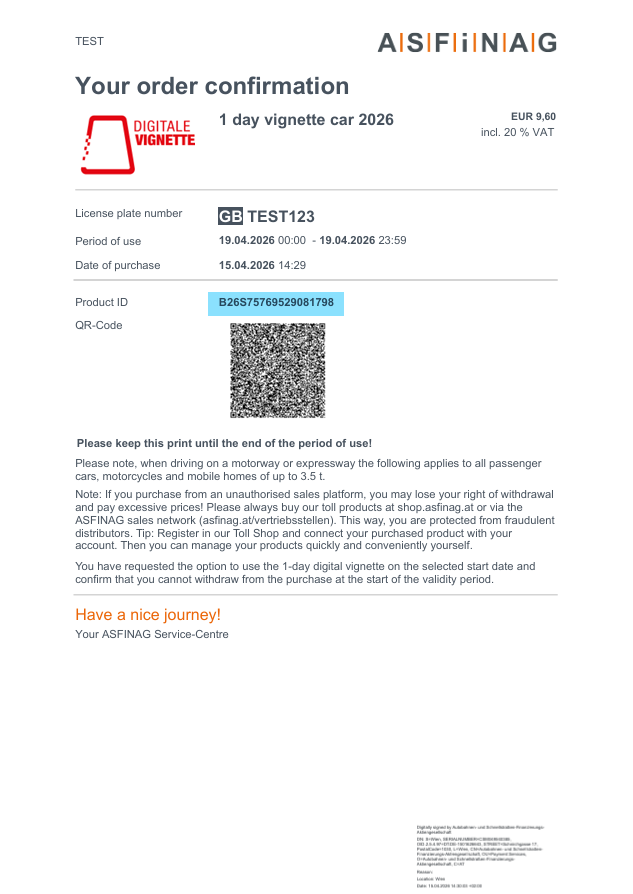
The product ID is a combination of letters and numbers that uniquely identifies a digital toll product.
You need the product ID, for example, to assign Digital Vignettes or Digital Section Toll products to your ASFINAG account.
Where can I find the product ID?
You can find the product ID on your order confirmation, which you receive immediately after purchase – either as a PDF file or as a printout/receipt.
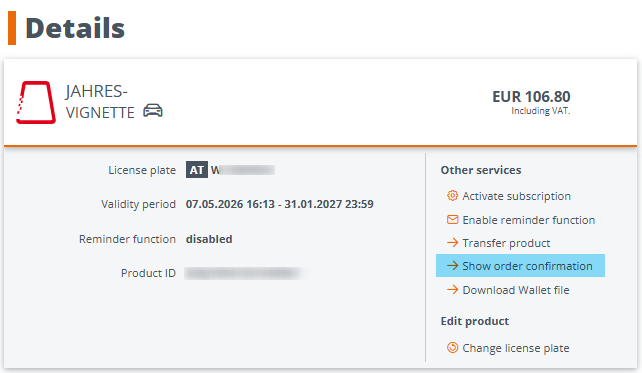
If you purchased the digital toll product directly through your ASFINAG account, you can download the order confirmation at any time under „My Account / My Products“.
No. If you delete your ASFINAG account, only your account data on asfinag.at, in the Mautshop, and in the ASFINAG app will be deleted.
This does not affect your already purchased digital toll products as long as they are still valid.
Your products remain valid and active even if your account no longer exists.
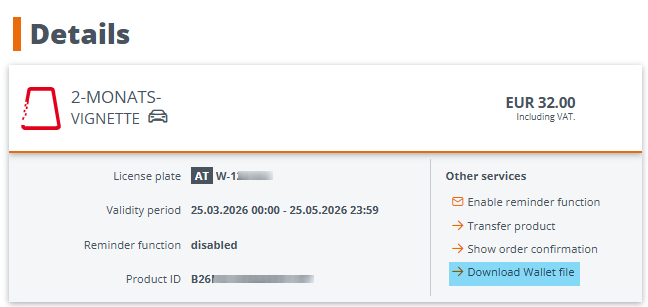
Yes. Digital toll products can also be saved as a Wallet file (Apple Wallet / Google Wallet) under certain conditions.
Purchase in the ASFINAG app
You will automatically receive the Wallet file via email – along with the invoice and order confirmation.
Purchase in the ASFINAG Mautshop
-
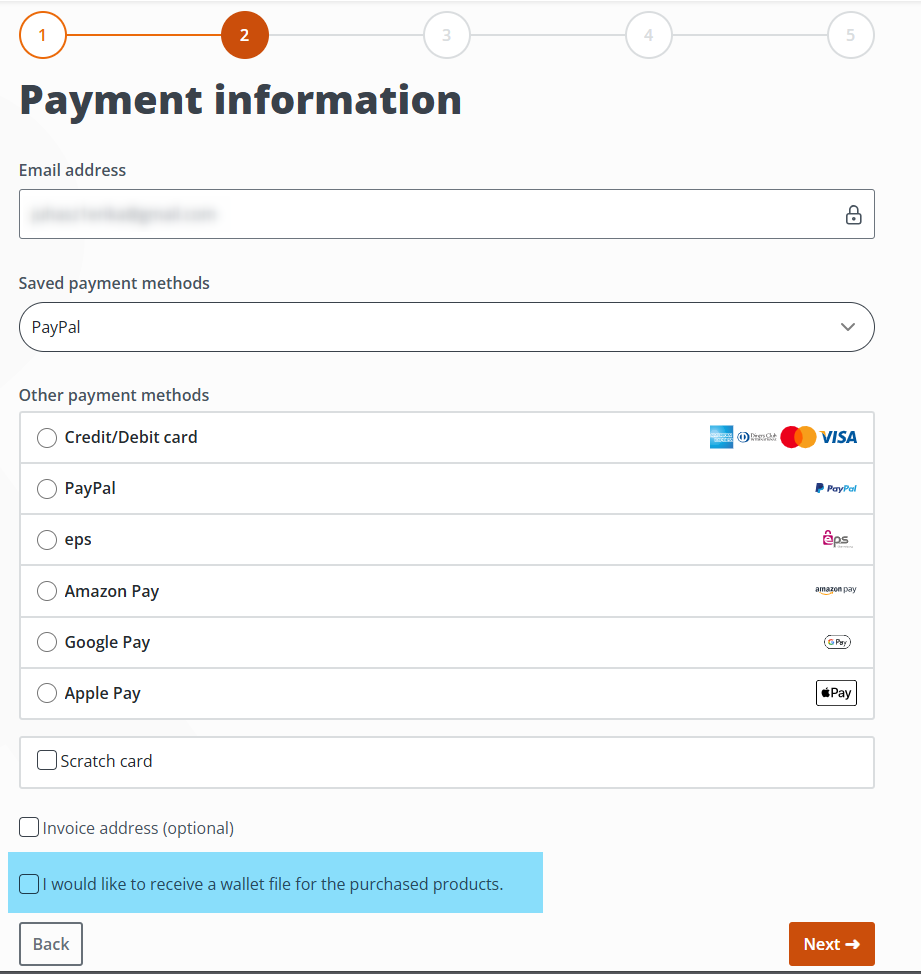
During the purchase process, you can manually activate the sending of the Wallet file in the "Payment Information" section.
- You can also download the Wallet file later under "My Products" if the product is saved in your ASFINAG account.
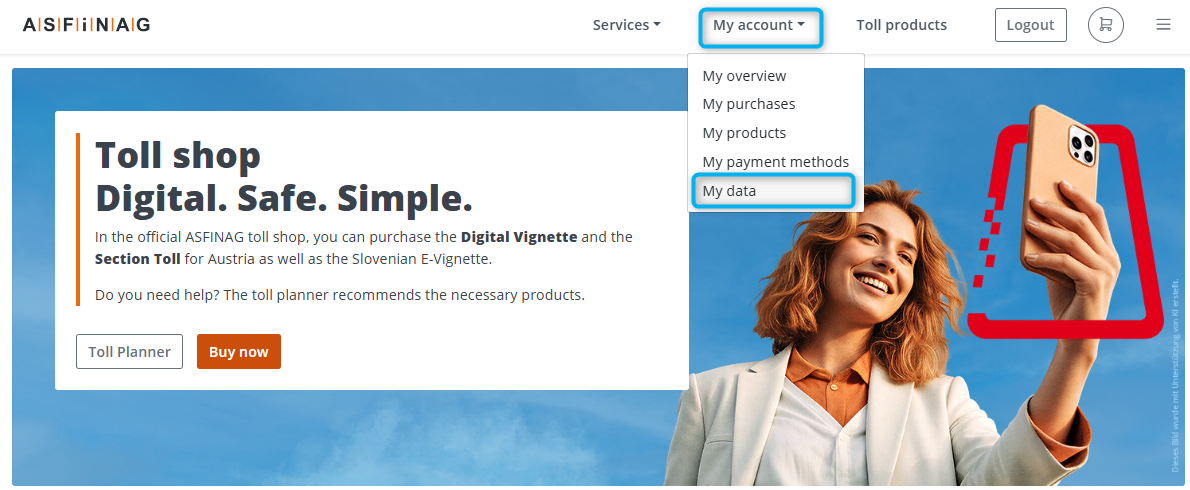
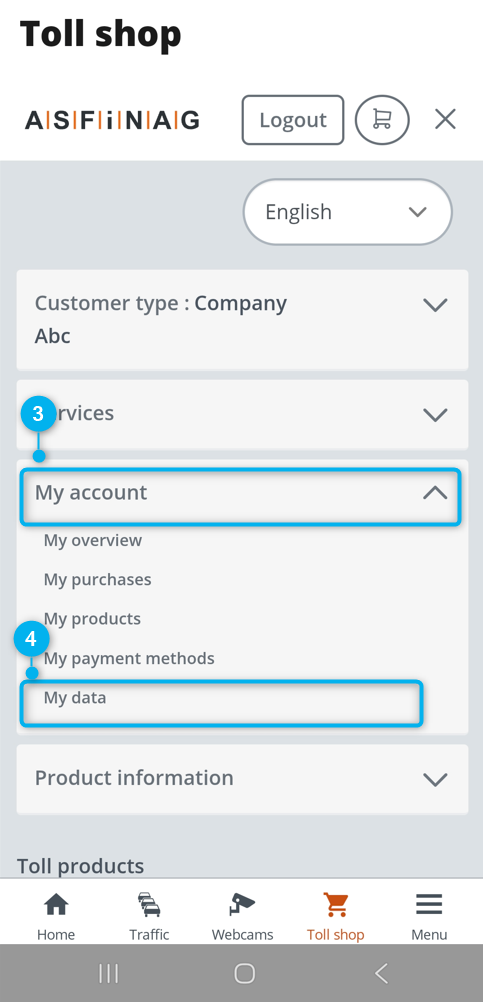
You can update your data at any time in the ASFINAG Mautshop – either on a PC/laptop or in the ASFINAG app.
Changing data on PC or laptop
-
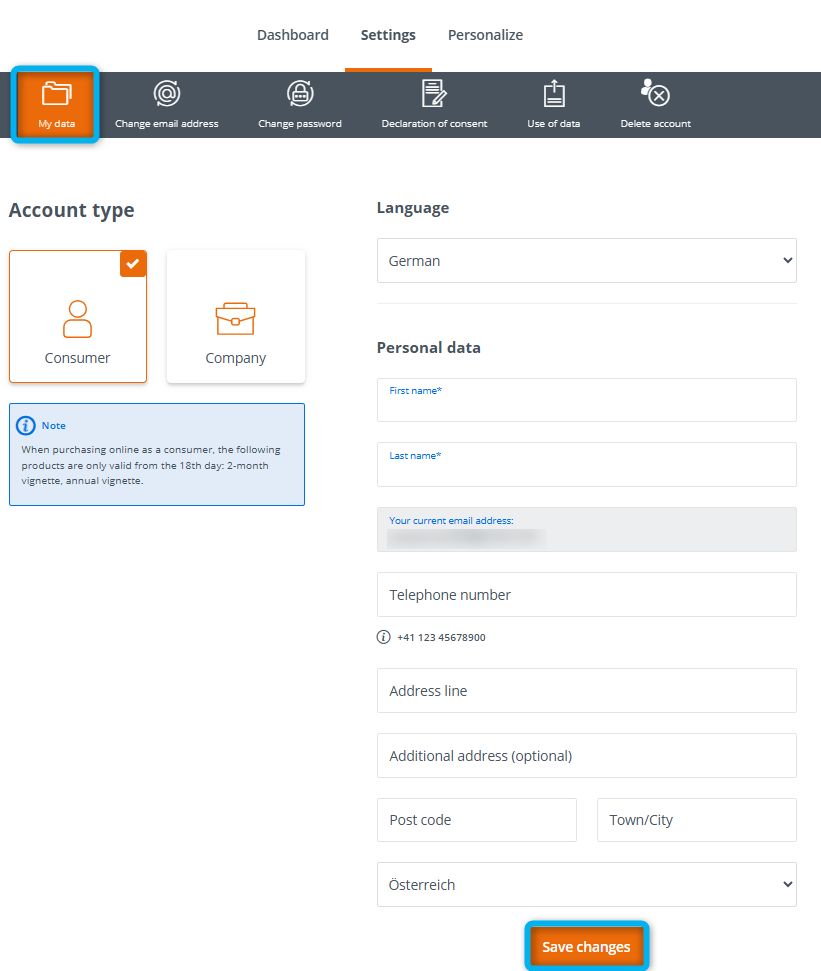
Log in to your ASFINAG account.
-
Click on „My Account“ and then on „My Data“.
-
Under the „Basic Data“ tab, you can edit your information.
-
Finally, click on „Save Changes“.
Changing data in the ASFINAG app
-
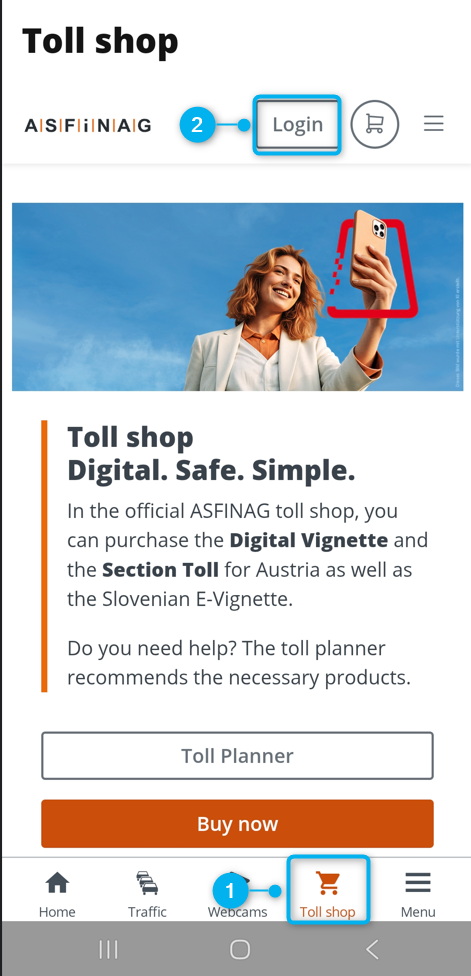
Open the ASFINAG app and log in to your Mautshop account.
-
Tap the three lines in the top left corner.
-
Go to „My Account“ and „My Data“.
-
Scroll down, enter the desired data, and tap „Save Changes“.
What data is required for a SEPA direct debit mandate?
For SEPA payments, the following information must be fully provided:
-
First name
-
Last name
-
Address
-
Postal code
-
City
-
Country
Important Note
Without complete basic data, ASFINAG will no longer be able to process future SEPA payments. However, you can add another payment method to your Mautshop account at any time.
Without ASFINAG customer account
For orders placed on or after 1 July 2026, the email order confirmation will contain a link that allows you to change or cancel products you have purchased, even without an ASFINAG account.
You can manage your purchased toll products even without a registered ASFINAG account. To do so, click the relevant link in your ASFINAG email order confirmation.
This function allows you to:
change the vehicle licence plate of your digital toll product (before the start of validity or before setting off on single journeys),
adjust the validity of your digital toll product (before the start of validity),
cancel your digital toll product (if possible).
No, license plate changes after the validity period has begun are only possible with an ASFINAG account and only for the following products:
annual vignettes
multi-trip cards
digital section toll FLEX